Oracle ERP Financials 26A
Low

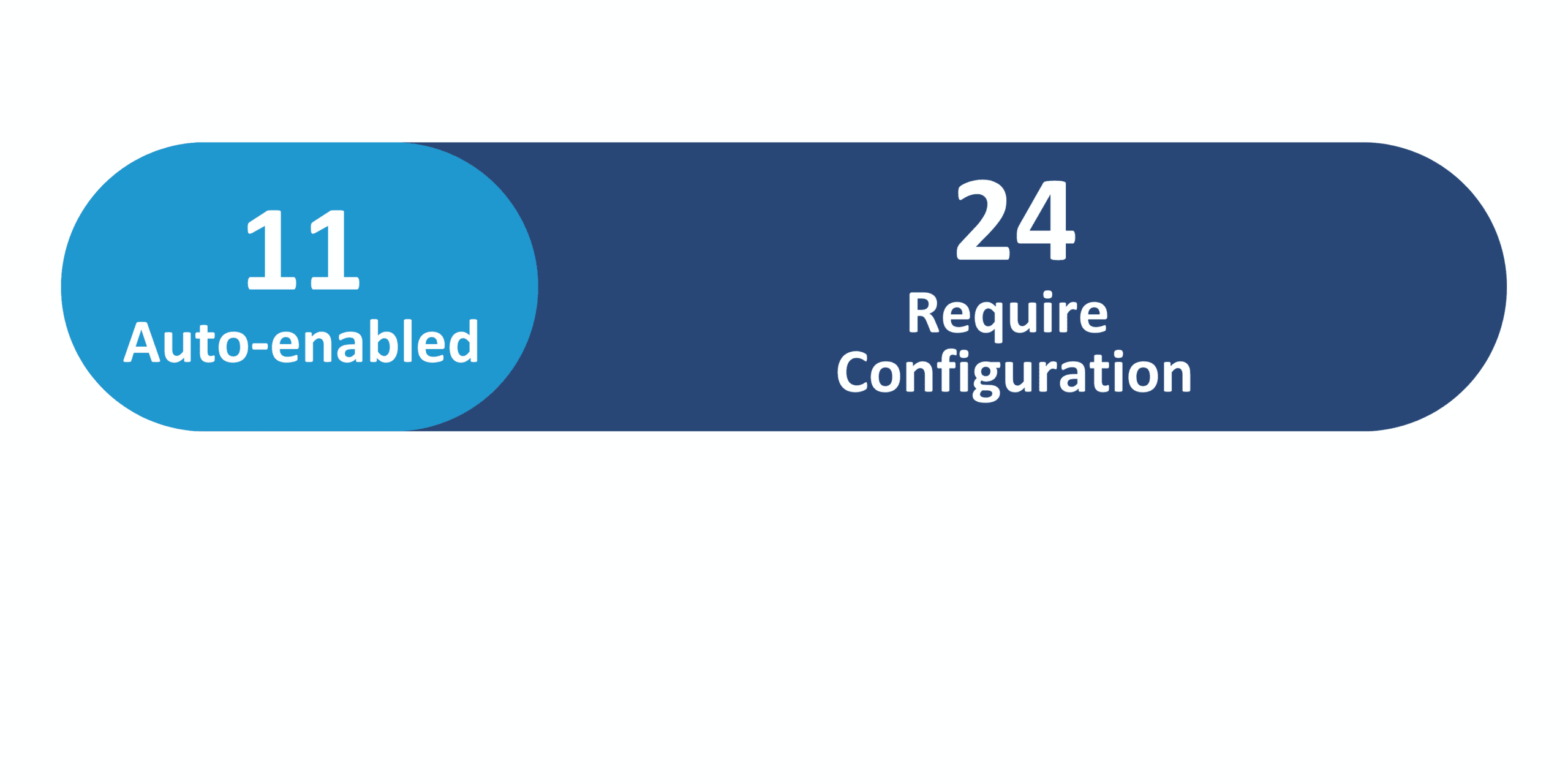
Feature Enablement
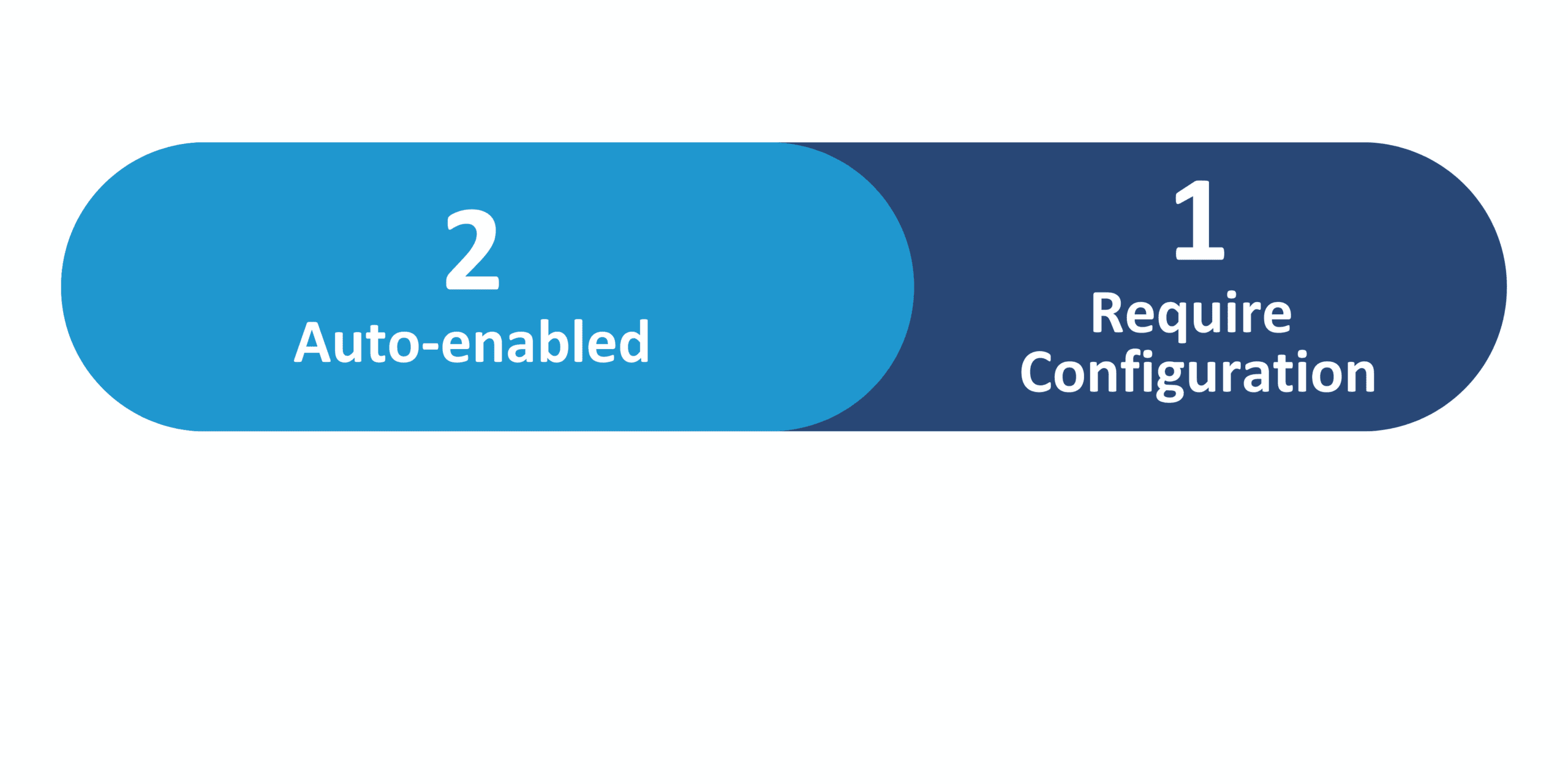
Redwood Features
26A Update Features Covered:
- AI Agent: B2B Message Processor – Analyze Additional Document Types
- US 1099 Forms and Electronic Reporting Updates for Tax Year 2025
- Payment Templates by Asset Type
- Embedded Banking Services with Bank of America for Real-Time Bank Balances
- Embedded Banking Services with Bank of America: Positive Pay File Enhancements
1. AI Agent: B2B Message Processor – Analyze Additional Document Types
Quick Notes:

You can use the B2B Message Processor AI agent to retrieve message details for additional document types, such as advanced shipment notice, invoice, invoice acknowledgment, receipt advice, and Brazil invoice documents. The agent gives information such as the trading partner references, processing date, and message status that will allow you to resubmit a successful message or reprocess a message that has failed.
Here are four tools provided as part of the agent:
- B2B Message Details: Get B2B message details using the document type and the document number.
- B2B View Message Log UI Deep Link: View the details in B2B Messages.
- Message Resubmitter: Resubmit a message using the Message GUID.
- Message Reprocessor: Reprocess a message using the Message GUID.
You can now quickly check the status of B2B messages rather than wait for the B2B administrator.
Steps to Enable and Configure:
You can use AI Agent Studio to use or copy a preconfigured agent template to create agents for your business processes. To automatically add a suffix to all artifacts in your agent team, you can Copy Template instead of Use Template. When you copy a template, you’re directly taken to the agent team canvas where you can edit the agent team settings, agents, tools, and topics. The Use Template option takes you through a step-by-step process for configuring each artifact in the agent team.
For information on using AI Agent Studio, see How do I use AI Agent Studio? https://docs.oracle.com/en/cloud/saas/fusion-ai/aiaas/
2. US 1099 Forms and Electronic Reporting Updates for Tax Year 2025
Quick Notes:
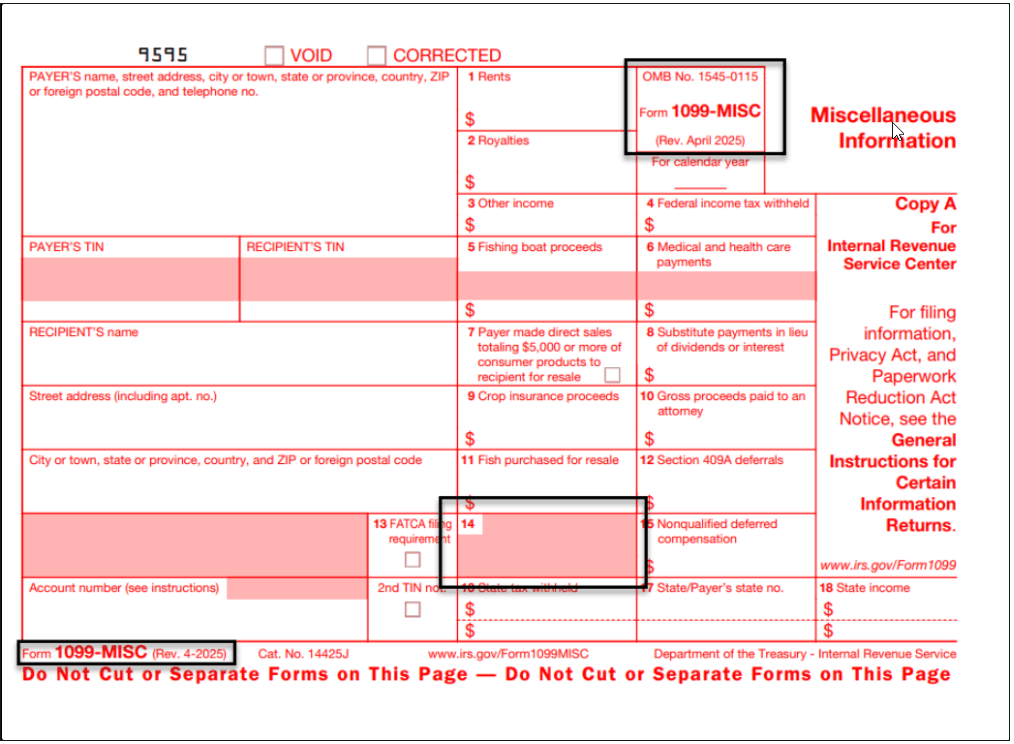
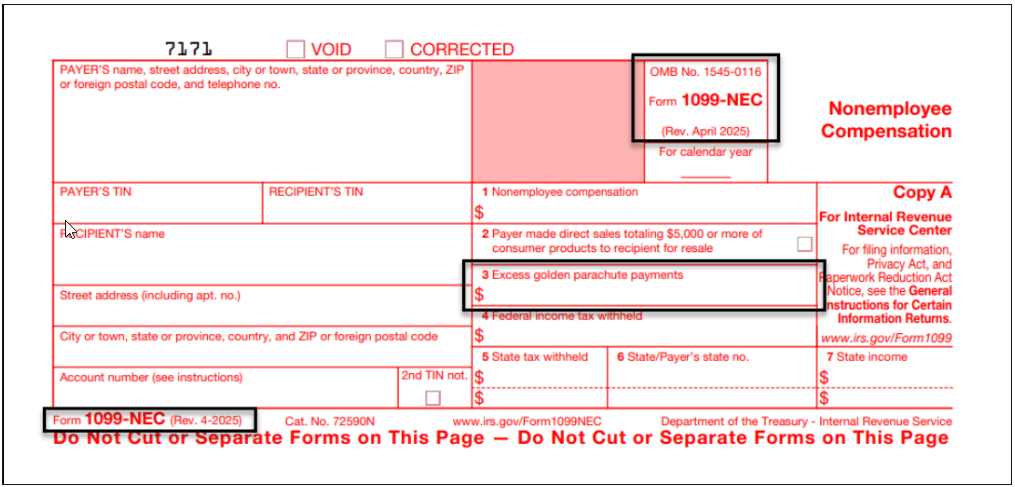
With this update, generate Forms 1099-MISC, 1099-NEC, 1096, and the corresponding electronic files in compliance with the 2025 US Internal Revenue Service specifications. Excess golden parachute payments are no longer reported in Box 14 on Form 1099-MISC. Amounts previously reported in Box 14 on 1099-MISC for excess golden parachute payments must now be reported in Box 3 on Form 1099-NEC. This update ensures alignment with the latest IRS instructions for excess golden parachute payments, form revisions, electronic file format updates, and changes to state participation in the Combined Federal/State Filing Program.
1099-MISC and 1099-NEC Preprinted Form Changes:
- Excess golden parachute payments are no longer reported in Box 14 on Form 1099-MISC.
- Amounts previously reported in Box 14 for excess golden parachute payments must now appear in Box 3 on Form 1099-NEC.
- Updated revision details to (Rev. Apr 2025) on all copies.
Steps to Enable:
You don’t need to do anything to enable this feature.
3. Payment Templates by Asset Type
Quick Notes:
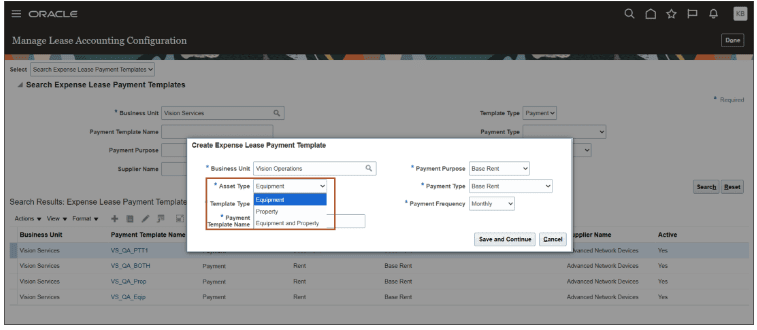
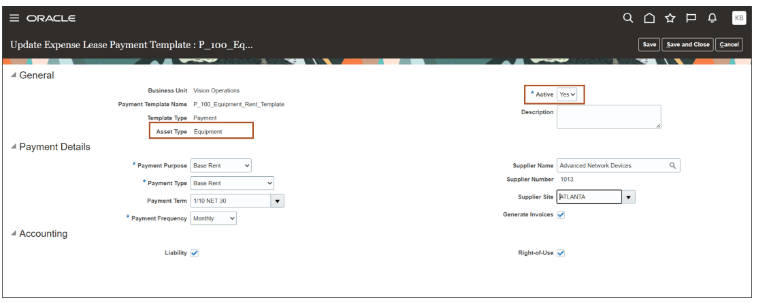
With this update, you define payment templates by asset type. Lease administrators use payment templates to enable defaulting of payment attributes, account code combinations, and transaction tax attributes during lease payment creation. The payment templates now include attributes specific to property or equipment asset types.
To create and use payment templates by asset type:
- Navigate to Setup and Maintenance and select the task Manage Lease Accounting Configuration.
- Navigate to Search Expense Lease Payment Templates to create a new expense lease payment template.
- Select Asset Type:
- Equipment: Indicates that the template may only be used for creating payments on an equipment lease.
- Property: Indicates that the template may only be used for creating payments on a property lease.
- Equipment and Property: Indicates that the template may be used for creating payments on both equipment and property leases.
- Enter required attributes and update the template status to Active.
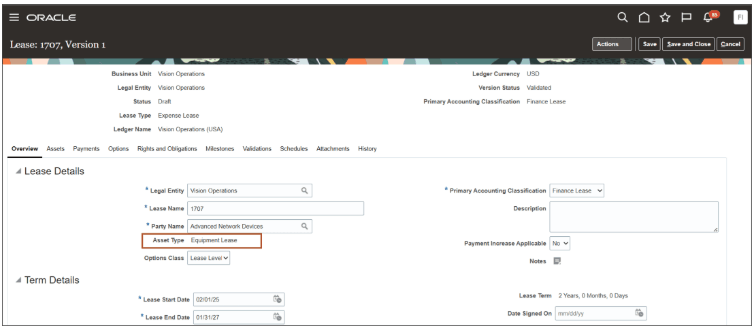
- Create an expense lease and add an asset to the lease.
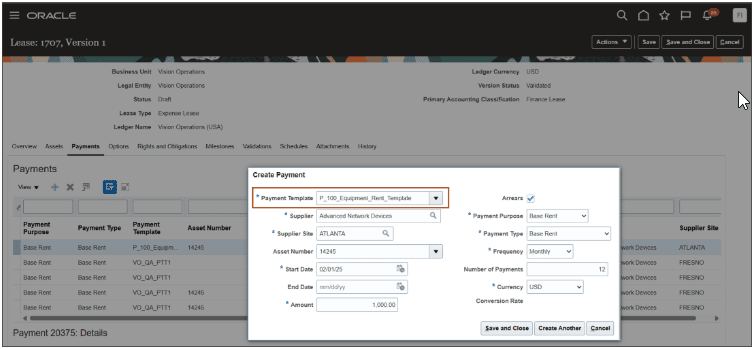
- Navigate to the Payments tab and create a payment.
- The list of values for Payment Templates displays templates filtered based on the asset type selected on the lease.
Steps to Enable:
You don’t need to do anything to enable this feature.
4. Embedded Banking Services with Bank of America for Real-Time Bank Balances
Quick Notes:
Embedded banking services with Bank of America provide businesses with a comprehensive view of their cash position, payments, and receipts. The solution includes ready-to-use connectivity between Oracle and Bank of America for U.S. and Canada customers. It includes rapid bank account onboarding, predefined ISO payment templates, automated funds capture and disbursement transmission, and continuous bank statement retrieval, processing, and reconciliation.
The latest update introduces the Cash Balances Dashboard as a central hub for reviewing real-time Bank of America account balances, enabling businesses to make timely, informed cash management decisions. By leveraging Bank of America’s Current Day Balance Inquiry API, the integration fetches and displays the most up-to-date balances, helping organizations enhance liquidity visibility and optimize cash management through a single, consolidated view.
Business benefits include:
- Accelerated access to real-time bank balances in your Cloud ERP system by integrating the Bank of America’s Current Day Balance Enquiries API.
- Enhanced visibility into real-time bank balances, allowing for better liquidity management and more effective cash flow decisions.
- Maximized investment returns by leveraging precise, real-time data to make informed decisions and allocate funds for optimal performance.
- Strengthened fraud detection and prevention by promptly identifying unusual bank balances for quicker response to potential threats.
Steps to Enable:
To enable this feature you need to log a Service Request (SR).
Review Service Request Process for B2B Embedded Banking Services (KB80112) and also refer to the 25C What’s New Treasury and Payments > Manage Cash Activities and Operations > Integrated Banking and Payments with Bank of America to familiarize yourself with the overall integration and requirements.
To enable this feature, you need to complete the following steps:
1. Enable Real-time balances dev opt-in.
- Navigation: Setup and Maintenance > Manage Standard Lookups
- Search for ‘ORA_ERP_CONTROLLED_CONFIG’
- Create dev opt-in ‘CE_35163538’
2. Navigate back to FSM task and Enable the Flow – Real-Time Bank Balance.
- To connect with Bank of America Real Time Bank Balance Service, navigate to FSM to the Manage Embedded Banking Configurations FSM task, falling under the Banking Configurations functional area.
- Navigation – Setup: Financials > Banking Configurations > Manage Embedded Banking Configurations
- Select Bank of America from the list.
- Check Real-Time Bank Balance flow.
- Select the flow Real-Time Bank Balance and click Next. As this is the first time the connectivity process is initiated, there is no status.
- After initiating onboarding with BofA, securely provide the SSH and PGP keys generated in Cloud ERP to BofA. BofA will upload these keys and switch the account to password-less access. Once done, BofA places a confirmation file in your outgoing folder, which Oracle Cloud ERP detects to update the connectivity status and finalize the integration.
3. Enter the OAuth credentials obtained from Bank of America as described below:
- After clicking on Next button, the status changes to Completed. It implies that the back-end process for establishing and verifying API connectivity has completed with Bank of America. The process takes several seconds for it to complete and hence, it will not be In Progress.
- After clicking on Next button, the new page opens, and the status badge will appear on the righthand side of the UI indicating the connectivity has completed successfully.
- Enable the Real-time Balance Processing option in the bank account setup.
- Navigation: Setup and Maintenance > Manage Bank Accounts
- Search for the Bank Accounts and edit the accounts with Real-Time Balance Processing flag checked.
5. Embedded Banking Services with Bank of America: Positive Pay File Enhancements
Quick Notes:
Oracle B2B is a component of the Cloud ERP solution. The Embedded Banking Services with Bank of America deliver turnkey banking and payment services directly within Cloud ERP for mutual customers worldwide. This solution includes bank account master data synchronization, simplified setup and processing of funds capture, disbursement with related acknowledgments, and automated bank statement processing and reconciliation.
As part of the 26A update, Bank of America Positive Pay File for In-house Printed Checks is included.
Positive Pay is a fraud prevention service that requires sending a file containing details of issued checks to the bank on a regular basis. This allows the bank to validate checks presented for payment against those issued, ensuring that only authorized checks are processed.
With this update, customers who print checks in-house can strengthen their fraud prevention efforts using the newly available, preconfigured Positive Pay File template for Bank of America, combined with automated file transmission.
Business benefits include:
- Strengthened fraud prevention by ensuring that only authorized checks are processed by the bank.
- Automated transmission of issued check details to Bank of America, reducing manual intervention and minimizing human error.
- Streamlined implementation through a preconfigured Positive Pay template tailored for Bank of America.
- Enhanced efficiency in in-house check processing with integrated fraud prevention controls.
- Improved compliance with bank fraud prevention protocols via system-driven, automated processes.
- Greater financial control and payment security for organizations managing their own check issuance.
Steps to Enable:
To enable this feature you need to log a Service Request (SR).
Follow the Oracle link above for more details.