
Oracle ERP Inventory Management 26A
Low

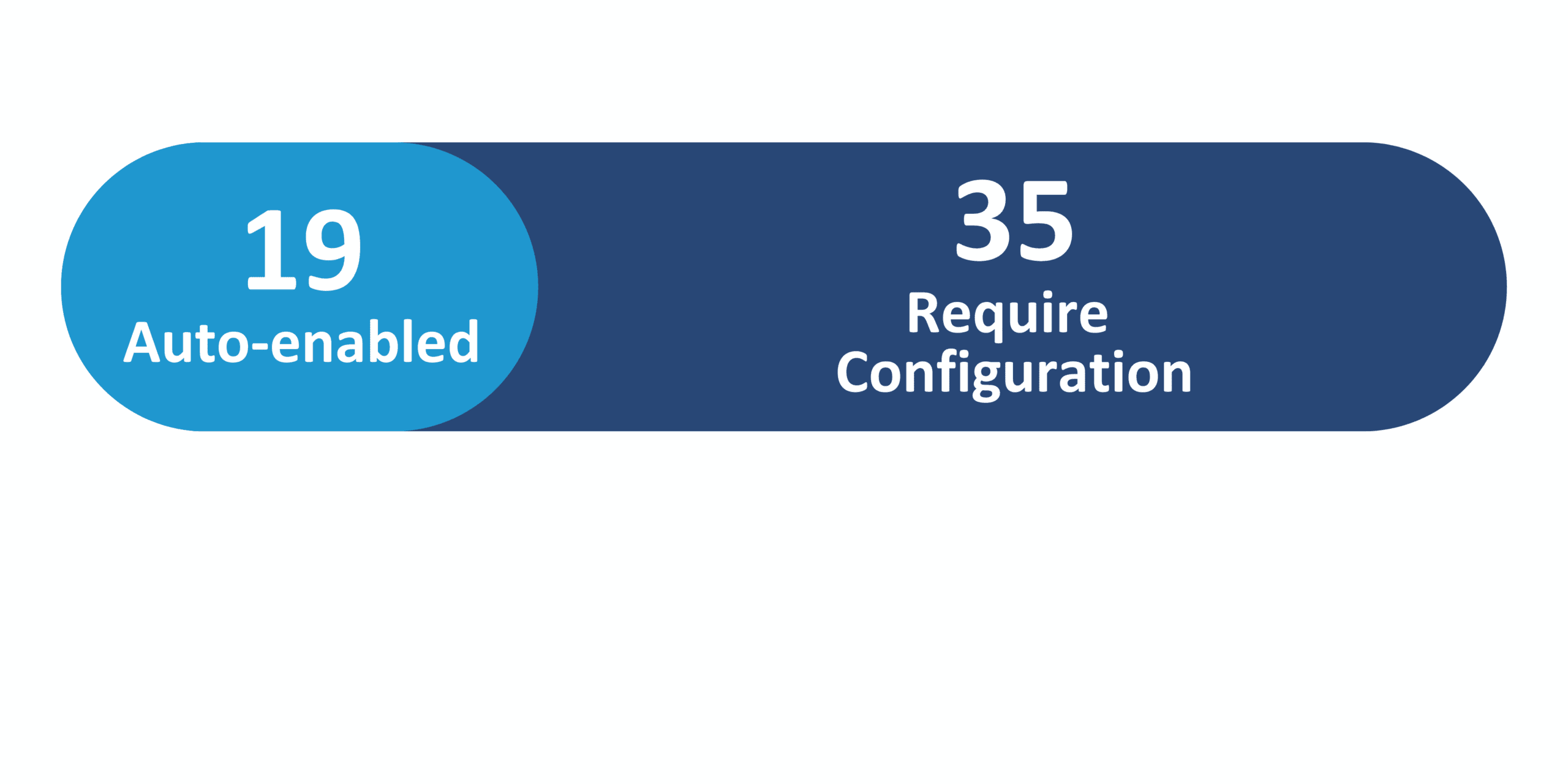
Feature Enablement
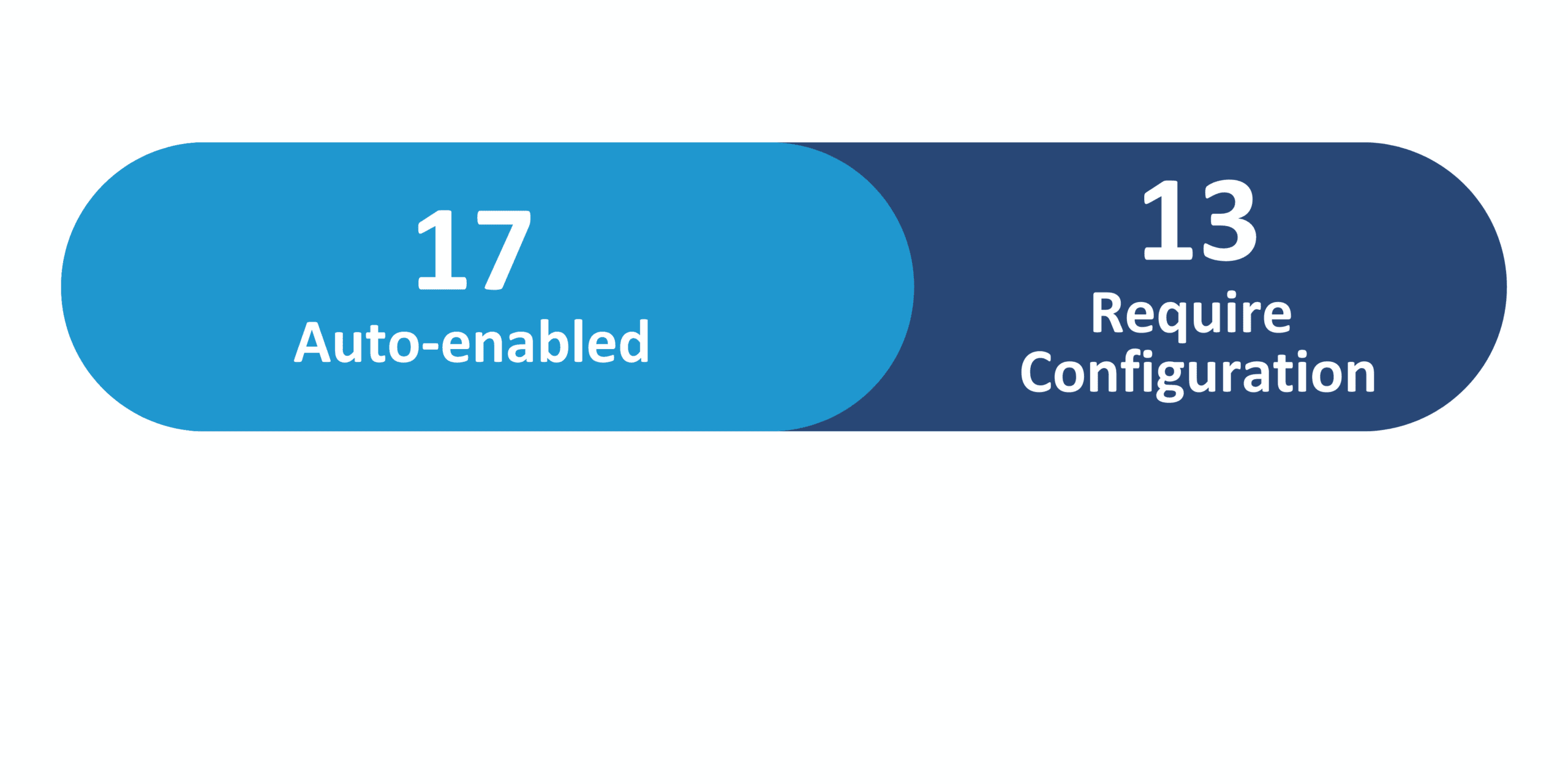
Redwood Features
26A Update Features Covered:
- AI Agent: Cycle Count Analysis Advisor
- AI Agent: Inventory Aging Advisor
- AI Agent: Inventory Reservation Assistant
- AI Agent: Stock Location Advisor
- Procurement – Redwood
1. AI Agent: Cycle Count Analysis Advisor
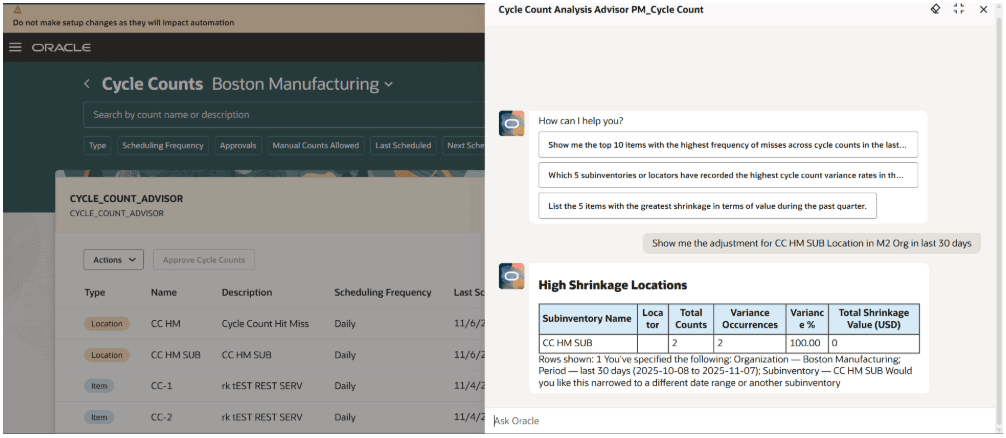
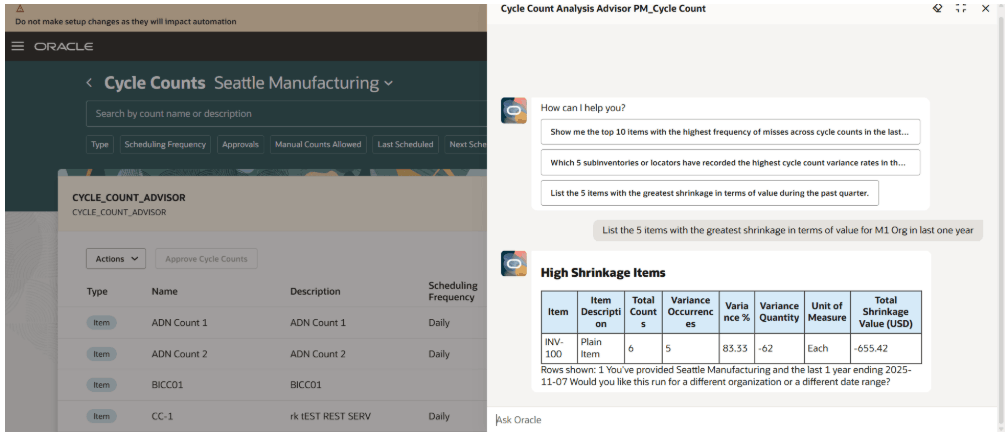
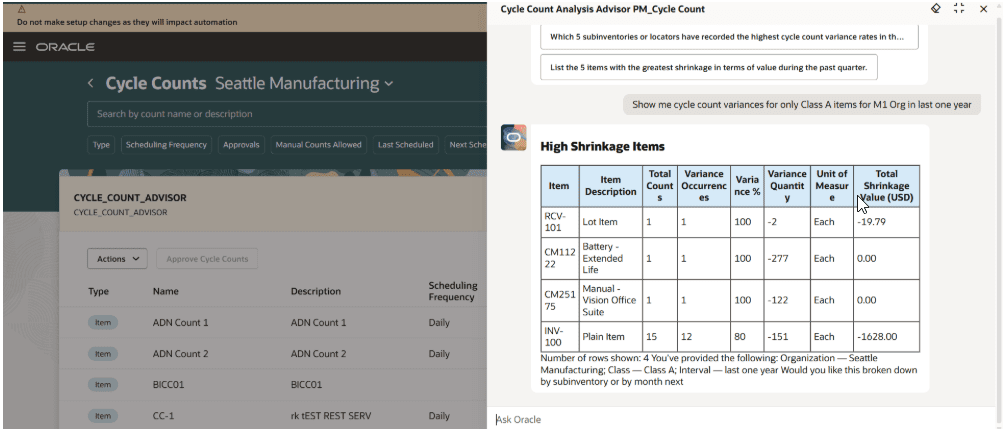
Cycle counts serve as a key way to ensure that your physical on-hand quantity matches the on-hand quantity reflected in Oracle Fusion Cloud Inventory Management. They provide insight into whether transactions are being recorded accurately, there are occurrences of theft, or your experiencing some other problem with on-hand accuracy. If a specific item consistently has variances over a period of time, it signals that a systemic issue needs to be rectified. However, you first need to know what items have this issue. Reviewing an item’s variance records over a period can be a painstaking process and something you might start only after there’s an obvious pattern and you’ve already lost a lot of money. Now you can use the Cycle Count Analysis Advisor AI agent to analyze cycle count variances and summarize the problematic items that require corrective action.
Key Capabilities:
- Variance Analysis Over Time: Detects items and locations that frequently show discrepancies in cycle counts.
- Operational Insights: Analyzes closed, approved, and adjusted cycle counts to highlight trends and problem areas.
- Data-Driven Recommendations: Provides actionable insights to help users focus corrective actions where they have the greatest impact.
Insight Categories:
- Top Missed Items: Identifies items frequently outside tolerance thresholds.
- Top Missed Locations: Highlights subinventories or locators consistently showing variances.
- Top Shrinkage Items by Cost: Surfaces high-value items contributing most to inventory loss.
Agent Behavior:
- Analyzes historical data from completed cycle counts, including closed, approved, and adjusted records.
- Doesn’t create, modify, or trigger new cycle counts; its role is limited to providing analytical insights.
- Functions as a decision-support tool, enabling strategic analysis rather than performing direct transactional actions.
Here are the tasks that this agent can analyze:
- By Item: Detect items frequently missing tolerance thresholds or frequently adjusted.
- By Location: Highlight subinventories or locators with frequent variances (adjustments).
- By Cost Impact: Identify items or categories contributing most to shrinkage value.
- By Class: Focus on specific classes (for example, Class A or B) to emphasize high-value items.

Steps to Enable:
To enable permission groups for roles, take these steps:
- In the Setup and Maintenance work area, search for the Manage Administrator Profile Values task using the search link in the Tasks panel tab.
- Search for the Enable Security Console External Application Integration (ORA_ASE_SAS_INTEGRATION_ENABLED) profile option and set the Site profile level to Yes.
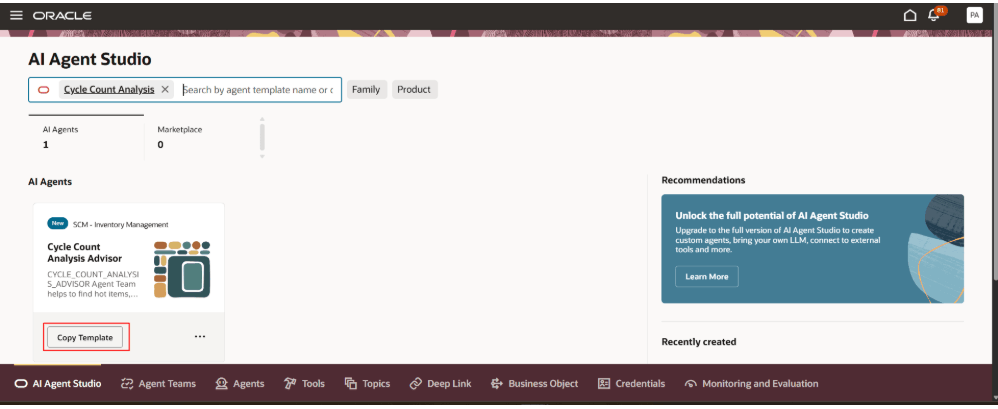
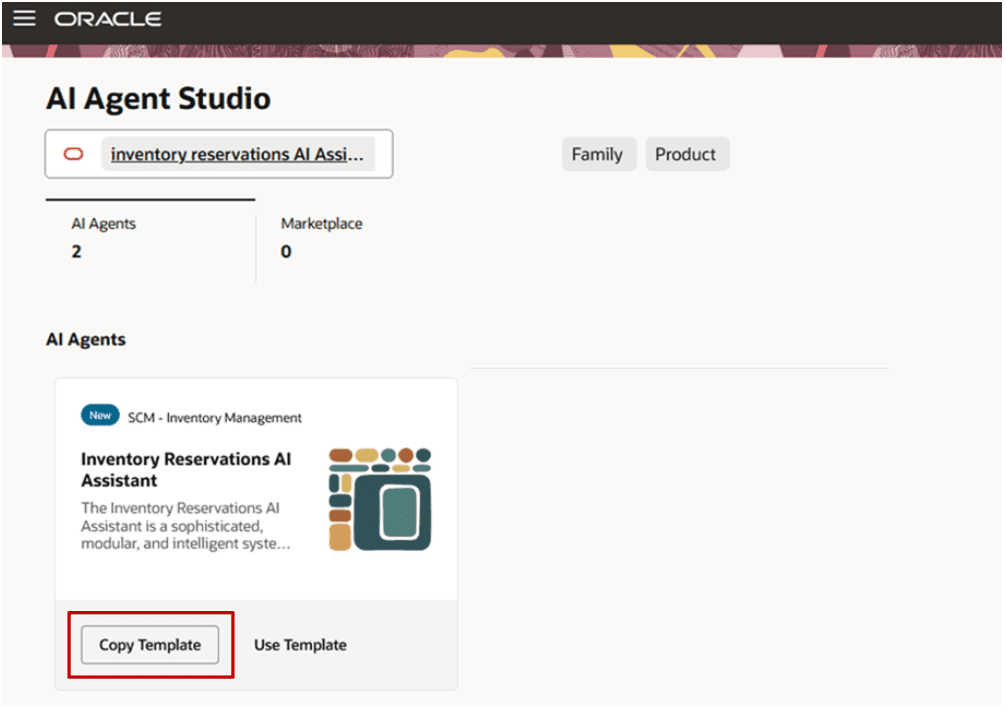
You can use AI Agent Studio to use or copy a preconfigured agent template to create agents for your business processes. To automatically add a suffix to all artifacts in your agent team, you can use the Copy Template instead of Use Template button. When you copy a template, you’re taken directly to the agent team canvas where you can edit the agent team settings, agents, tools, and topics. The Use Template option takes you through a step-by-step process for configuring each artifact in the agent team.
2. AI Agent: Inventory Aging Advisor
Quick Notes:


Slow-moving or dead stock inventory can negatively impact a business by increasing storage costs, creating missed opportunities, and causing financial losses due to insufficient space for high-demand items. To minimize these effects, companies should regularly review inventory performance, adjust purchasing strategies, and consider promotions or liquidations. However, the first step is identifying which goods are currently classified as slow-moving stock. Now you can use the Inventory Aging Advisor AI agent to identify and disposition your slow-moving goods.
This agent analyzes inventory across an organization to identify slow-moving, non-moving, or obsolete items based on operational metrics, including:
- Inventory turns: Frequency with which inventory is sold or used over a period
- Weighted average inventory age: Average duration items remain in inventory
- Sales percentage: Proportion of stock sold relative to total inventory over a set timeframe
Slow-Moving Items
Upon identifying such items, the agent checks for existing demand and supply within the same or other organizations. Based on the findings, recommended actions may include:
- Scrapping: Disposing of obsolete goods
- Transferring to alternative subinventories: Moving items to locations with potential demand
- Interorganization transfers: Relocating inventory to organizations where the items are needed
If there’s no existing demand for an item within or across organizations and you decide to scrap it, you can initiate a scrap transaction. After the transaction is created successfully, you can review the details using the provided deep link URL.
Scrap Transaction
Once you identify the organization that requires the item, you can initiate an interorganization transaction. The agent will prompt you for confirmation before proceeding. After the transaction is created successfully, you can view the related supply request using the provided deep link URL.
Interorganization Transfer
This AI agent enhances your ability to identify your slow-moving stock so that you can take appropriate actions to reduce holding costs and prevent stock obsolescence.
Steps to Enable:
To enable permission groups for roles, take these steps:
- In the Setup and Maintenance work area, search for the Manage Administrator Profile Values task using the search link in the Tasks panel tab.
- Search for the Enable Security Console External Application Integration (ORA_ASE_SAS_INTEGRATION_ENABLED) profile option and set the Site profile level to Yes.
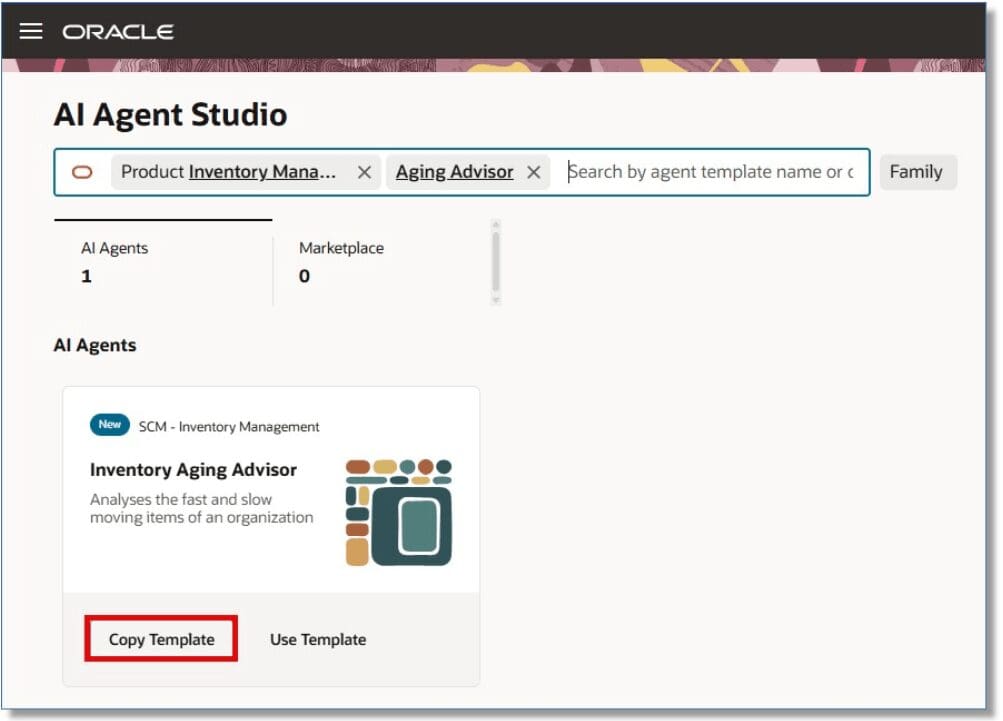
You can use AI Agent Studio to use or copy a preconfigured agent template to create agents for your business processes. To automatically add a suffix to all artifacts in your agent team, you can use the Copy Template instead of Use Template button. When you copy a template, you’re taken directly to the agent team canvas where you can edit the agent team settings, agents, tools, and topics. The Use Template option takes you through a step-by-step process for configuring each artifact in the agent team.
3. AI Agent: Inventory Reservation Assistant
Quick Notes:
In fast-paced, just-in-time fulfillment industries, efficiently managing order reservations is essential for meeting demand and ensuring customer satisfaction. Order managers need the flexibility to quickly create and update reservations as circumstances change or when customer service expedites specific orders. With the Inventory Reservation Assistant AI agent, you can now create, view, and manage reservations all in one place, eliminating the need for navigating through multiple pages or performing manual searches. This tool streamlines the process, helping you respond swiftly to last-minute changes and ensuring your customers receive their goods on time.
Using the prebuilt AI agent template for the Inventory Reservation AI Assistant, you can create an agent team by making a copy of the template. This agent team can then be added to a guided journey on a Redwood page, such as the Reservations page in Inventory Management, New Sales Orders page in Order Management, and Work Orders page in Manufacturing.
Steps to Enable
To enable permission groups for roles, take these steps:
- In the Setup and Maintenance work area, search for the Manage Administrator Profile Values task using the search link in the Tasks panel tab.
- Search for the Enable Security Console External Application Integration (ORA_ASE_SAS_INTEGRATION_ENABLED) profile option and set the Site profile level to Yes.
You can use AI Agent Studio to use or copy the preconfigured agent template to create Agents for your business processes. To automatically add a suffix to all artifacts in your agent team, you can use the Copy Template instead of Use Template button. When you copy a template, you’re directly taken to the agent team canvas where you can edit the agent team settings, agents, tools, and topics. The Use Template option takes you through a step-by-step process for configuring each artifact in the agent team.
4. AI Agent: Stock Location Advisor
Quick Notes:
Inventory inaccuracies are a common challenge in warehouses and stockrooms. When inventory records are incorrect, warehouse operators spend additional time and effort locating stock in alternate locations. This often means they have to stop what they’re doing and start investigating where to find the goods they need. Meanwhile, other operators may continue to be directed to the discrepant location, leading to repeated inefficiencies, wasted effort, and operational slowdowns. Now your operators can use the Stock Location Advisor AI agent to quickly identify potential locations where they can find the goods they require and simultaneously submit a cycle count for the discrepancy they discovered.
Here are the tasks that this agent can perform:
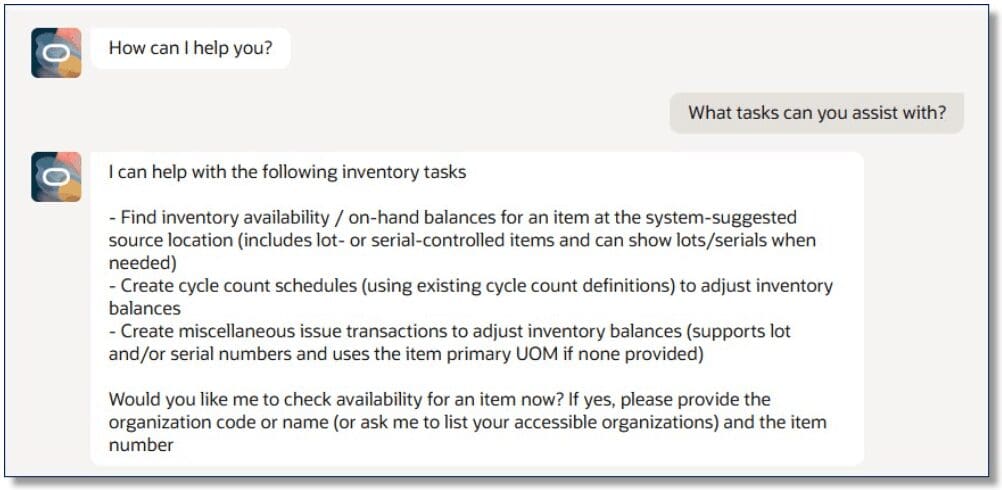
- Assist warehouse operators in identifying alternative locations for picking materials when items aren’t found in their originally allocated locations.
- Adjust inventory records in the suggested location by creating a cycle count schedule. This prevents further allocations from that location.
- Alternatively, create a miscellaneous transaction to update the on-hand balance of the item.
Steps to Enable
To enable permission groups for roles, take these steps:
- In the Setup and Maintenance work area, search for the Manage Administrator Profile Values task using the search link in the Tasks panel tab.
- Search for the Enable Security Console External Application Integration (ORA_ASE_SAS_INTEGRATION_ENABLED) profile option and set the Site profile level to Yes.
You can use AI Agent Studio to use or copy the preconfigured agent template to create Agents for your business processes. To automatically add a suffix to all artifacts in your agent team, you can use the Copy Template instead of Use Template button. When you copy a template, you’re directly taken to the agent team canvas where you can edit the agent team settings, agents, tools, and topics. The Use Template option takes you through a step-by-step process for configuring each artifact in the agent team.
5. Procurement – Redwood
Quick Notes:
The Inventory updated for Redwood in 26A are:
- Redwood: Count Lot and Serial Numbers in a Quantity-Tracked PAR Location
- Redwood: Release Pick Waves by Sales Order Type
- Redwood: Review Min-Max Quantities and PAR Levels Before Updating Current Values
- Redwood: Use Alternate Language Translations for Subinventories and Zones
- Redwood: Use Lot-Specific Unit of Measure Conversions
- Redwood: View Shortages and Stockouts for Kanban Locations on the Item Shortages Page
- Redwood: Purge Cycle Count Schedules for a Specific Cycle Count
- Redwood: Use Document Output Preferences for Label Printing
- Redwood: View Item Description on the Item Quantities Page
- Redwood: Capture Lot and Serial Numbers During Receiving Only
- Redwood: Use Additional Capabilities for Receipt Delivery Carts
- Redwood: Configure Document Output Preferences for Receiving Documents